Skip to content

PC PROBLEM • Display & Monitor

Why Is My Screen Flickering?

Screen flickering is commonly related to a cable, refresh rate, display driver, or a specific application. Safely isolate the source before making…

Why Is My Screen Flickering?

Quick answer

Screen flickering is commonly related to a cable, refresh rate, display driver, or a specific application. Safely isolate the source before making hardware changes.

1. The problem

A flickering display can interrupt work and cause eye strain. Sometimes it only appears in one application; in other cases it…

A flickering display can interrupt work and cause eye strain. Sometimes it only appears in one application; in other cases it affects the entire desktop.

These safe checks help identify whether the display, cable, driver, or a Windows setting may be involved.

2. Common symptoms

The image flickers rapidly, Horizontal lines appear, The issue worsens during games or video, An external monitor cuts…
  • The image flickers rapidly
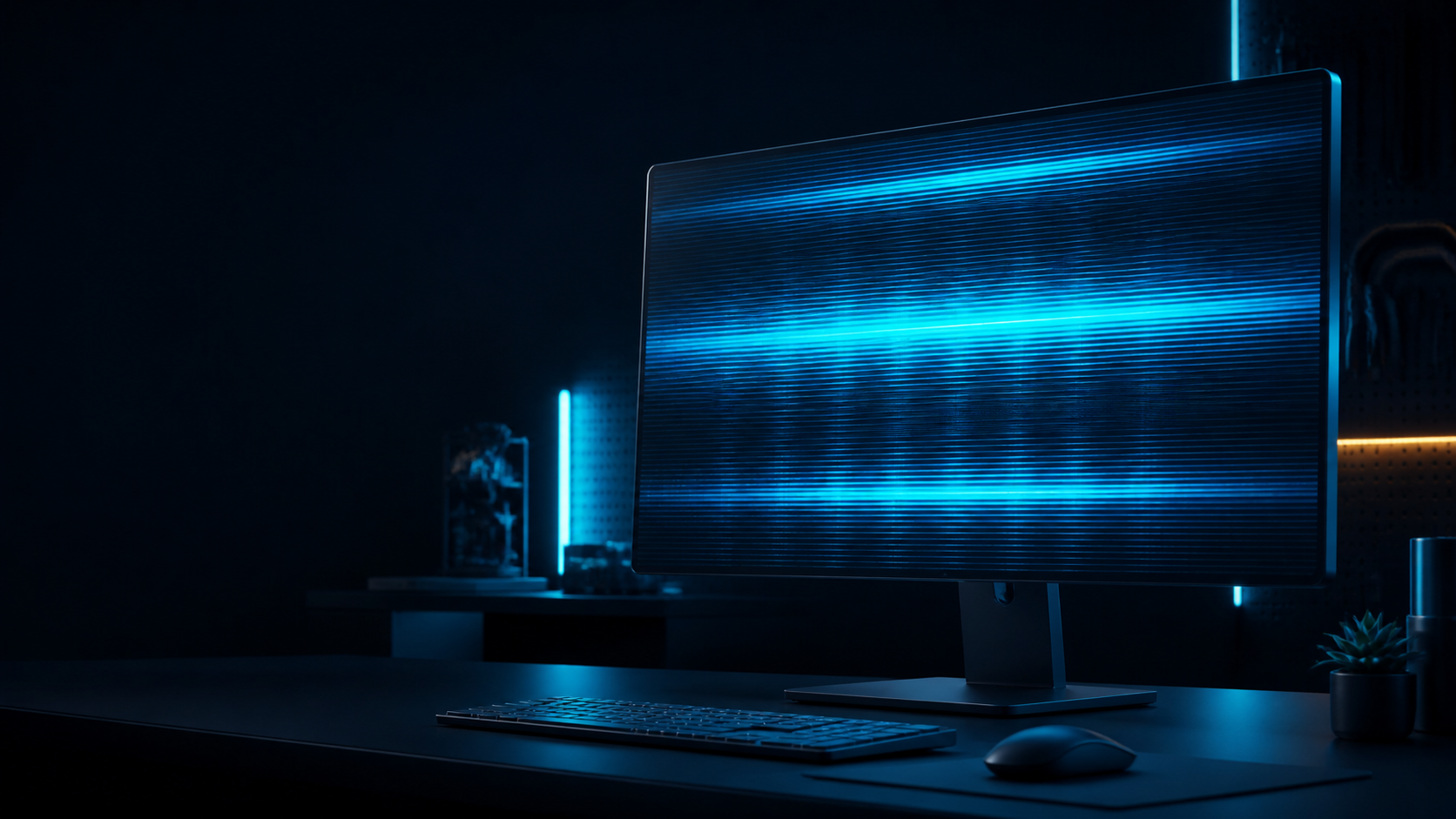
  • Horizontal lines appear
  • The issue worsens during games or video
  • An external monitor cuts in and out
  • Brightness appears unstable

3. Possible causes

A loose or damaged display cable, An incompatible refresh rate, An outdated or faulty display driver, Application or browser hardware…
  • A loose or damaged display cable
  • An incompatible refresh rate
  • An outdated or faulty display driver
  • Application or browser hardware acceleration
  • A monitor or display-panel fault

4. How to check safely

Check whether it continues in another application, Compare with another monitor or cable, Set Windows refresh rate to the recommended…
  1. Check whether it continues in another application
  2. Compare with another monitor or cable
  3. Set Windows refresh rate to the recommended value
  4. Check the display-driver version for a safe update
  5. See whether the issue appears in a screenshot to assess the software possibility

5. How to fix it

Reconnect the cable firmly, Try another cable or port, Update the driver from the manufacturer’s official page, Test with hardware…
  1. Reconnect the cable firmly
  2. Try another cable or port
  3. Update the driver from the manufacturer’s official page
  4. Test with hardware acceleration disabled in the affected app
  5. Seek authorized technical help for persistent physical flicker

When should you take it seriously?

Stop using the device and seek professional help if there is a burning smell, a cracked panel, a persistent black screen, or loss of image.

Online PC Doctor

Check your display

Use the Online PC Doctor platform for the available display and pixel checks.

View free testsExplore display tests